


Outlook Setup
Use these steps to set up Microsoft Outlook for Computer Country email. Full server reference: Email settings. Also see Thunderbird Setup, iPhone/iPad Setup, and Android Setup.
Computer Country provides Autodiscover for many @ccountry.net addresses. Outlook can look up IMAP/POP and SMTP automatically. Prefer IMAP. This is an IMAP/POP mailbox—not Microsoft Exchange Online on Microsoft 365.
If your address is on another domain (not @ccountry.net), Autodiscover fails, or Outlook pushes a Microsoft work/school Exchange path incorrectly, use manual IMAP/SMTP with the hostnames below.
1. Add an account
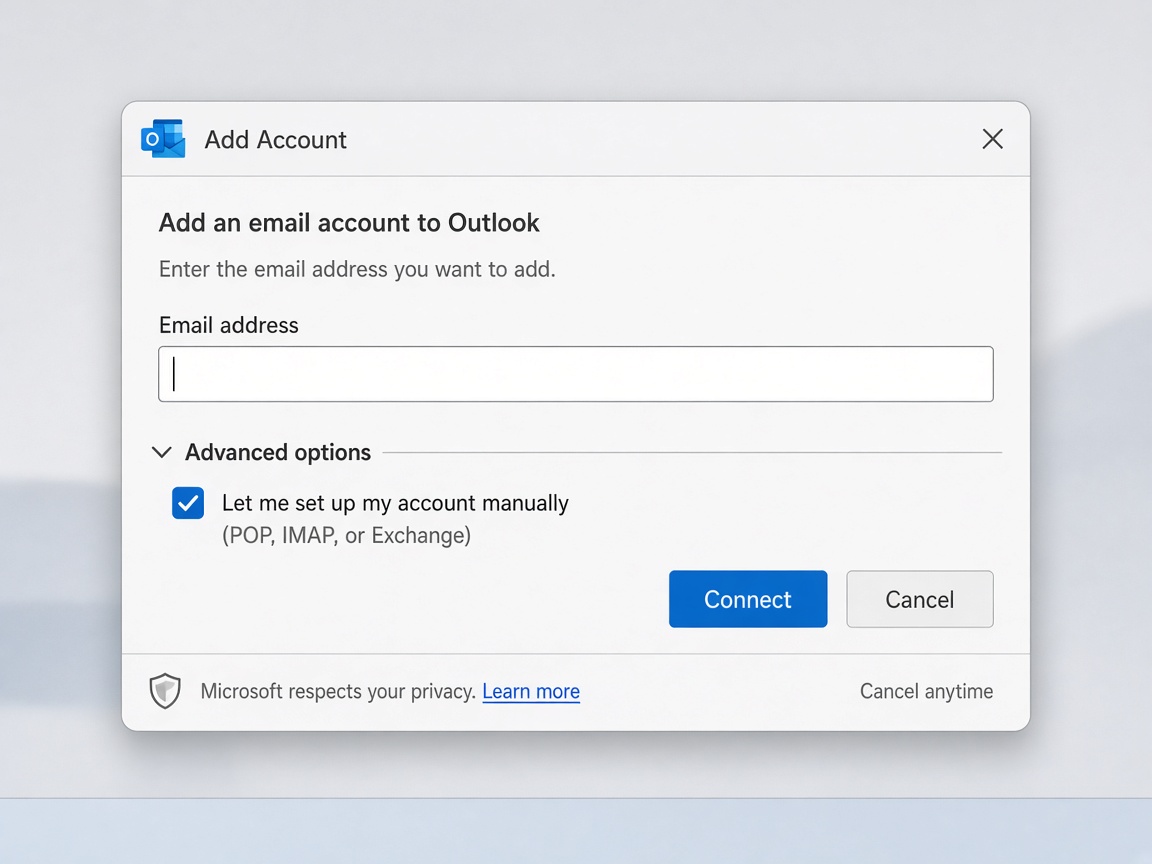
In classic Outlook, choose File → Add Account (or File → Account Settings → Account Settings → New). Enter your Computer Country email address and password.
2. Autodiscover (recommended for @ccountry.net)
Allow Outlook to search for settings. Prefer IMAP if asked. Confirm the username is your mailbox username only—not the full email address (for many @ccountry.net accounts this is the part before @)—then finish setup.
If Outlook only offers Microsoft 365 / Exchange Online for a work tenant you do not have, cancel that path and use manual setup.
3. Manual IMAP setup when needed
Choose Advanced options → Let me set up my account manually (wording varies), then IMAP.
- Incoming:
mail.ccountry.net, port 993, SSL/TLS - Outgoing:
smtp.ccountry.net, port 465, SSL/TLS - Username: your Computer Country mailbox username only—not the full email address (same on SMTP; turn on “outgoing server requires authentication”)
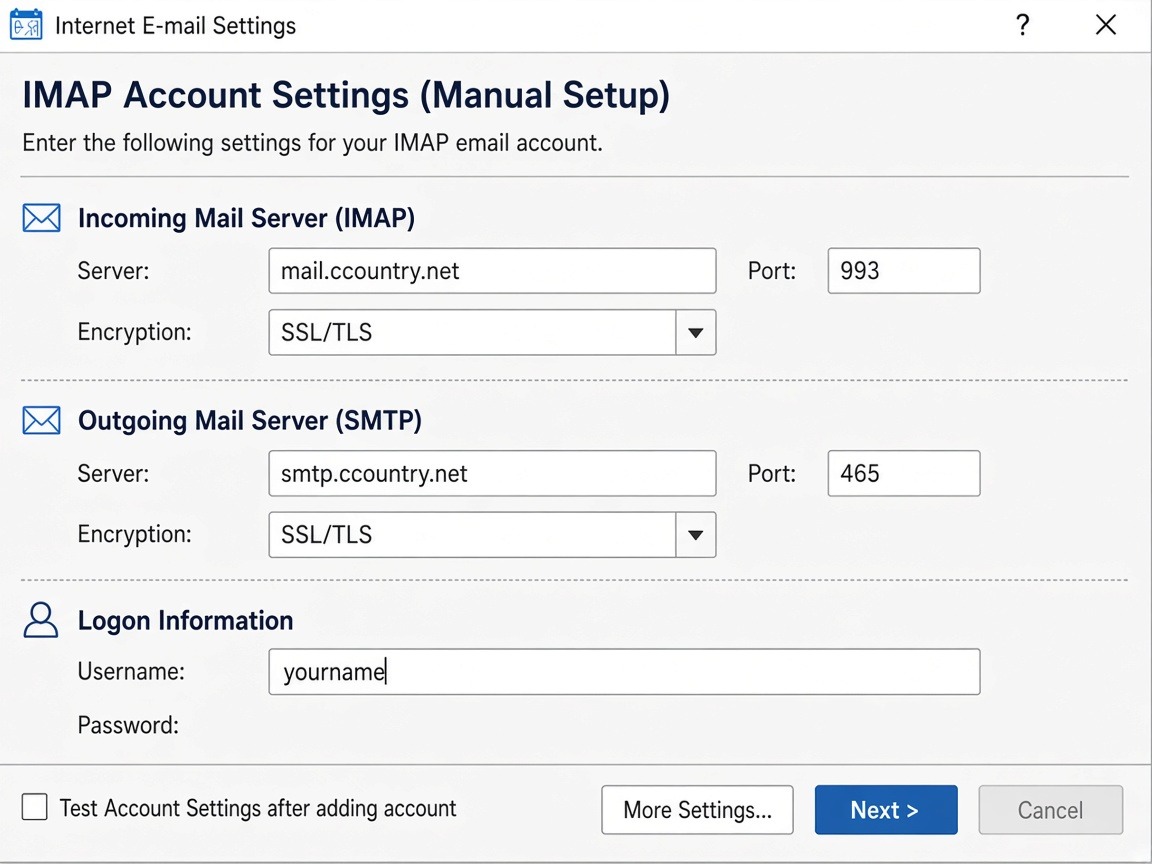
For POP instead, use port 995 with SSL on the same incoming server.
New Outlook and Outlook for Mac
Enter your address and prefer Autodiscover for @ccountry.net. If the app will not accept custom IMAP/SMTP, use classic Outlook or Thunderbird with the same servers.
If you can receive but cannot send
Edit the account’s SMTP server: smtp.ccountry.net, port 465, SSL/TLS, authentication on, correct username and password.
Need help? Call 541-772-2170 or 1-800-501-8972, or email support@ccountry.net.