


Android Setup
Use these steps to add your Computer Country email on an Android phone or tablet. Labels vary slightly by Android version and mail app (Gmail, Samsung Email, and others). Full server reference: Email settings. For iPhone and iPad, see iPhone/iPad Setup.
IMAP is recommended so mail syncs with webmail and other devices. Use POP only if you prefer it.
Accounts that are not @ccountry.net (another domain on our mail servers) use the same hostnames below—enter the mailbox username we gave you. Most Android apps need these servers entered manually.
1. Add an account in your mail app
Open Gmail (or Samsung Email / another mail app). Tap your profile picture or the menu, then Add another account (or open the app’s settings and choose Add account).
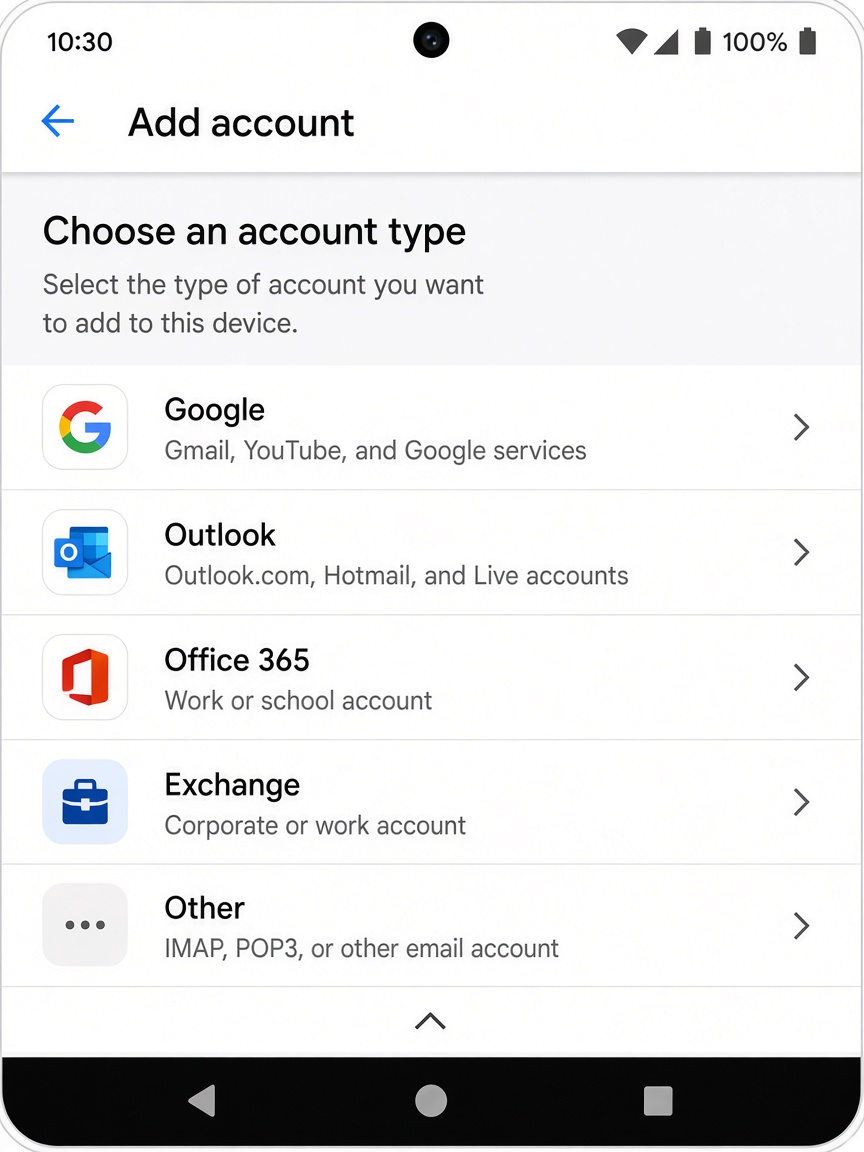
2. Choose Other
Select Other (not Google, Outlook, Office 365, or Exchange) for a Computer Country mailbox.
3. Enter your email address
Type your full Computer Country email address and tap Next.
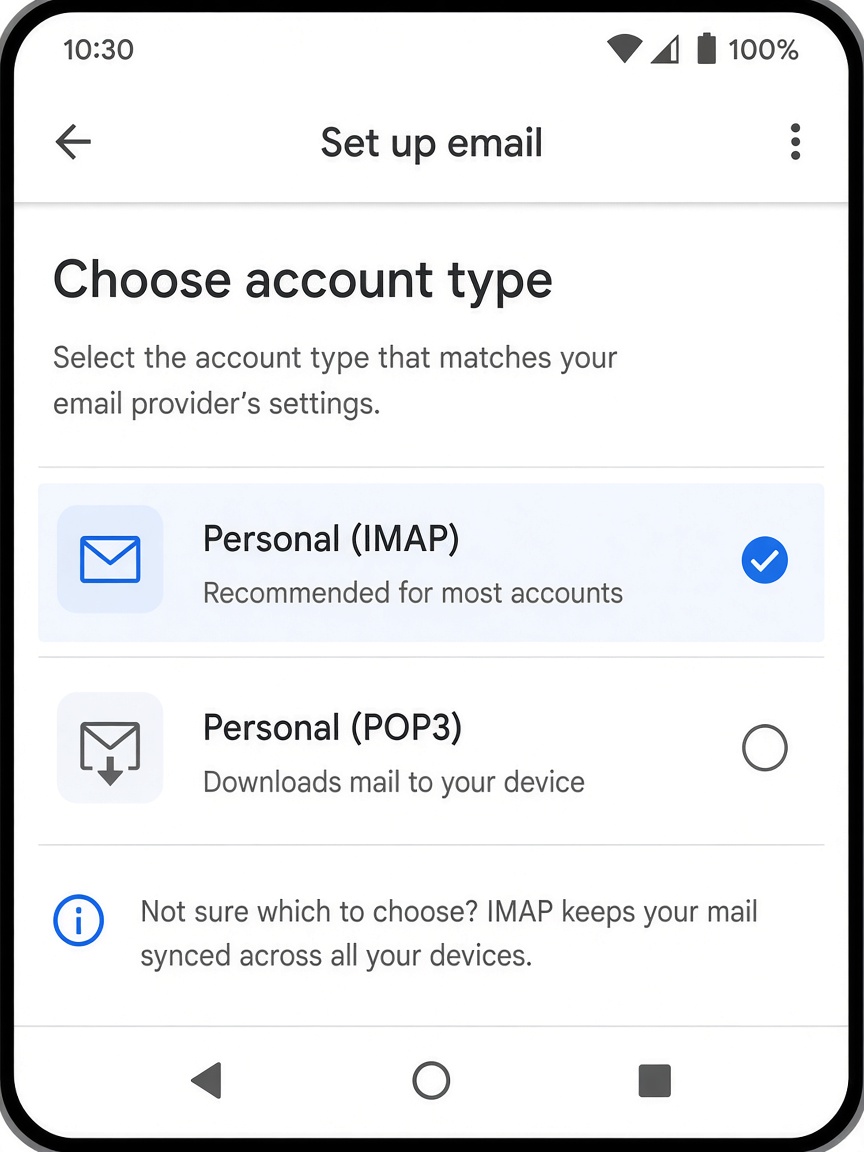
4. Choose Personal (IMAP)
Select Personal (IMAP) (recommended). Choose Personal (POP3) only if you specifically want POP.
5. Enter your password
Enter your mailbox password and tap Next.
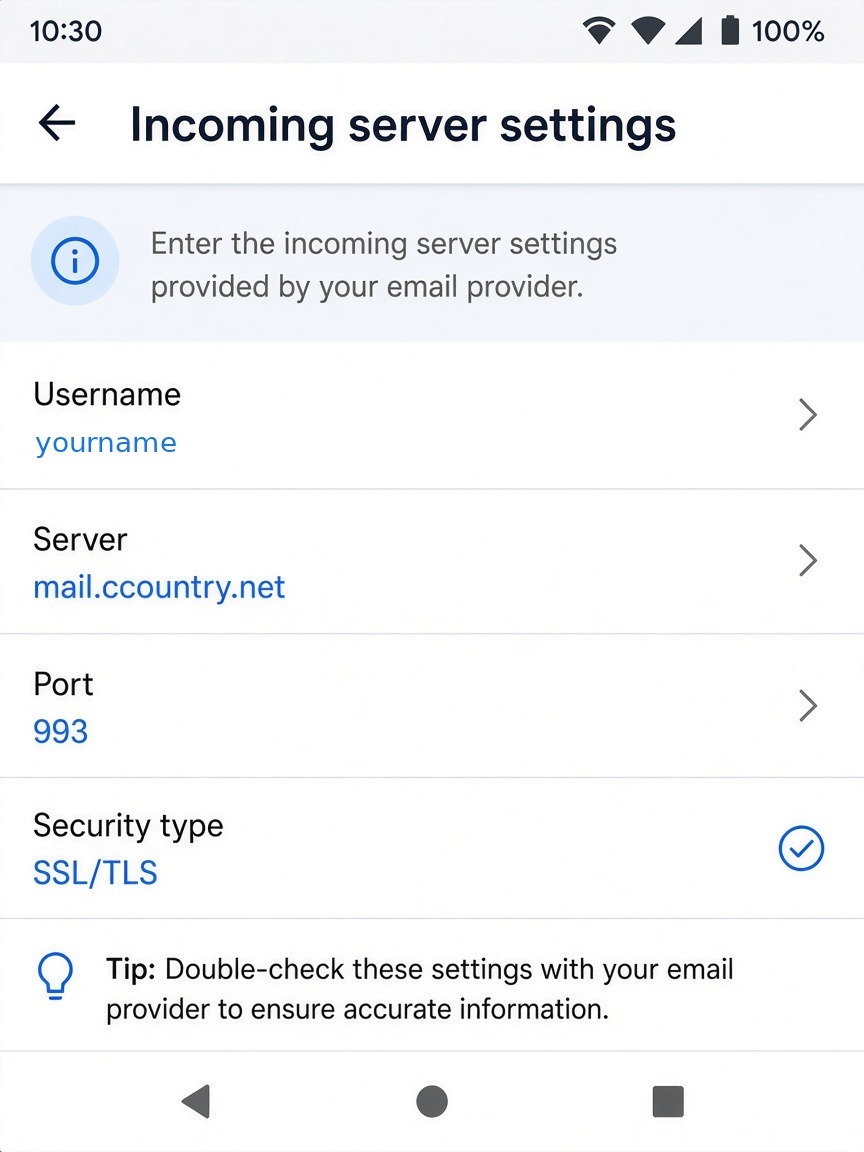
6. Incoming server settings
Confirm or enter:
- Username: your Computer Country mailbox username only—not your full email address. If the app filled in the full email address, change it to the mailbox username
- Server:
mail.ccountry.net - Port: 993 for IMAP (or 995 for POP)
- Security type: SSL/TLS
Tap Next.
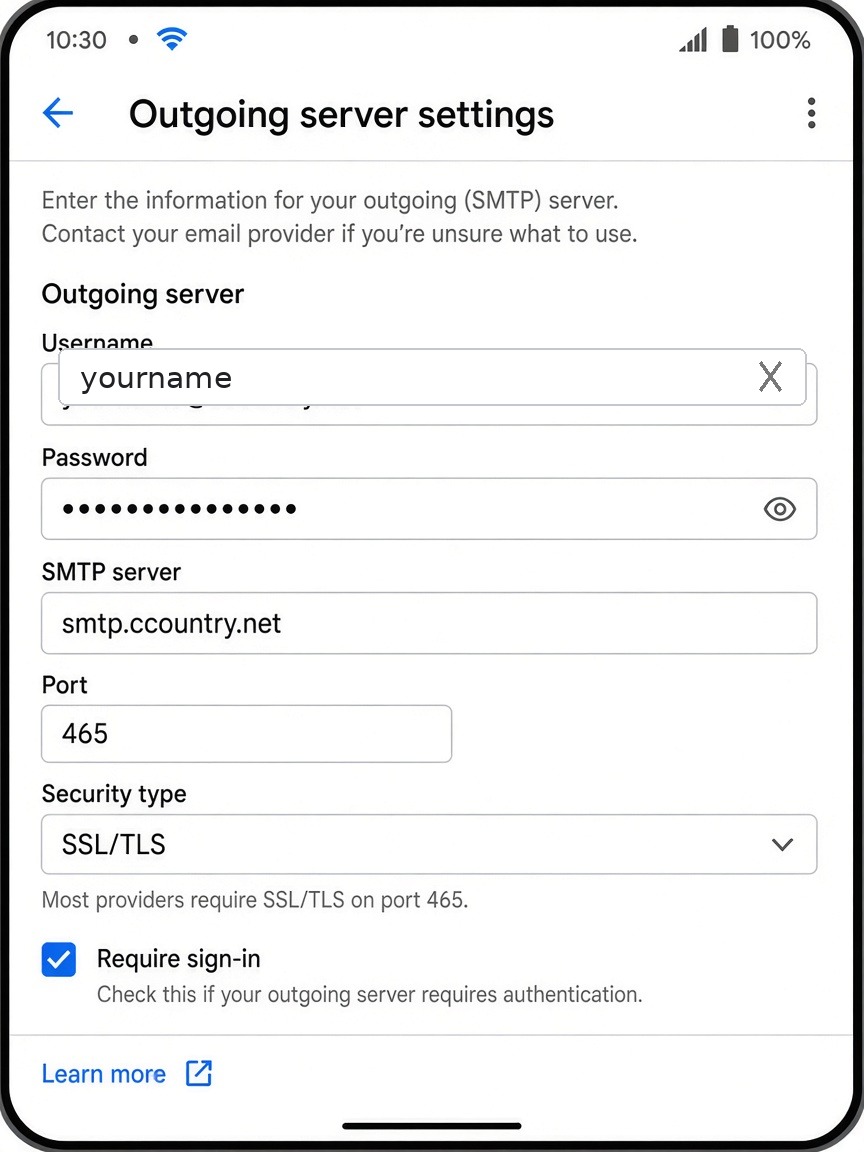
7. Outgoing server settings
Confirm or enter:
- Username: same mailbox username
- Password: same password
- SMTP server:
smtp.ccountry.net - Port: 465
- Security type: SSL/TLS
- Require sign-in: On / Yes
Tap Next, choose sync and notification options, then finish with Next / Done.
If you cannot send mail
Open the account’s server settings in the mail app and check outgoing SMTP:
- Server:
smtp.ccountry.net - Port: 465
- Security: SSL/TLS
- Sign-in / authentication on, with username and password filled in
Samsung Email and other apps
The same values apply. Use Manual setup if the app cannot find settings automatically, choose IMAP, and enter mail.ccountry.net / smtp.ccountry.net with the ports above.
More detail: Email settings. Need help? Call 541-772-2170 or 1-800-501-8972, or email support@ccountry.net.