


Thunderbird Setup
Use these steps to set up Mozilla Thunderbird for Computer Country email. Full server reference: Email settings. Also see Outlook Setup, iPhone/iPad Setup, and Android Setup.
Computer Country provides Thunderbird Autoconfig for many @ccountry.net addresses. Enter your name, email, and password, click Continue, and Thunderbird can fill in the servers. Prefer IMAP.
If your address is on another domain (not @ccountry.net), or Autoconfig fails, use Configure manually with the hostnames below. Download Thunderbird from thunderbird.net if needed.
1. Add a mail account
Open Thunderbird. If prompted, use Set Up Your Existing Email Address. Otherwise open Account Settings and choose Account Actions → Add Mail Account.
Enter your full name, Computer Country email address, and password.
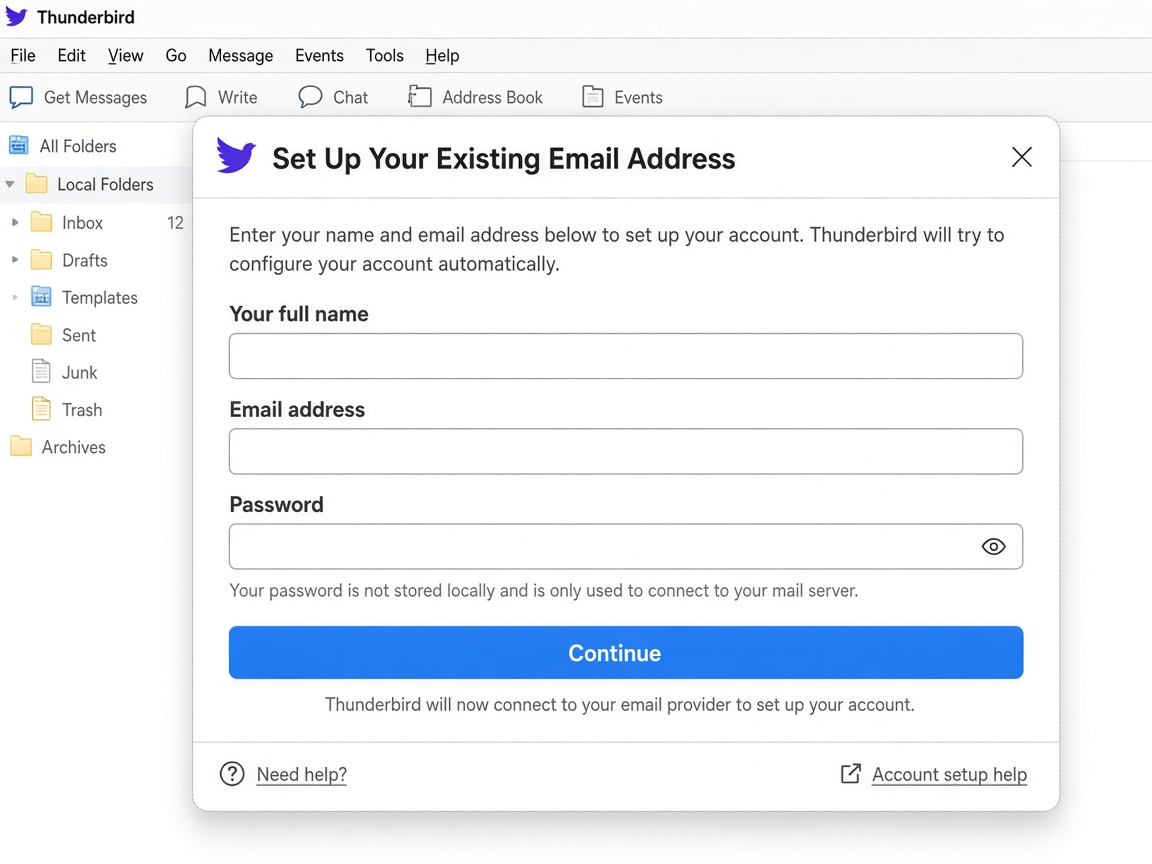
2. Autoconfig (recommended for @ccountry.net)
Click Continue and wait while Thunderbird looks up settings. Prefer IMAP if both IMAP and POP are offered. Confirm the username is your mailbox username only—not the full email address (for many @ccountry.net accounts this is the part before @)—then click Done.
3. Manual configuration when needed
Choose Configure manually / Manual config if Autoconfig does not finish or your address is not @ccountry.net.
- Incoming (IMAP):
mail.ccountry.net, port 993, SSL/TLS, normal password - Incoming (POP3):
mail.ccountry.net, port 995, SSL/TLS (only if you prefer POP) - Outgoing (SMTP):
smtp.ccountry.net, port 465, SSL/TLS, normal password - Username: your Computer Country mailbox username only (not the full email address) on both incoming and outgoing
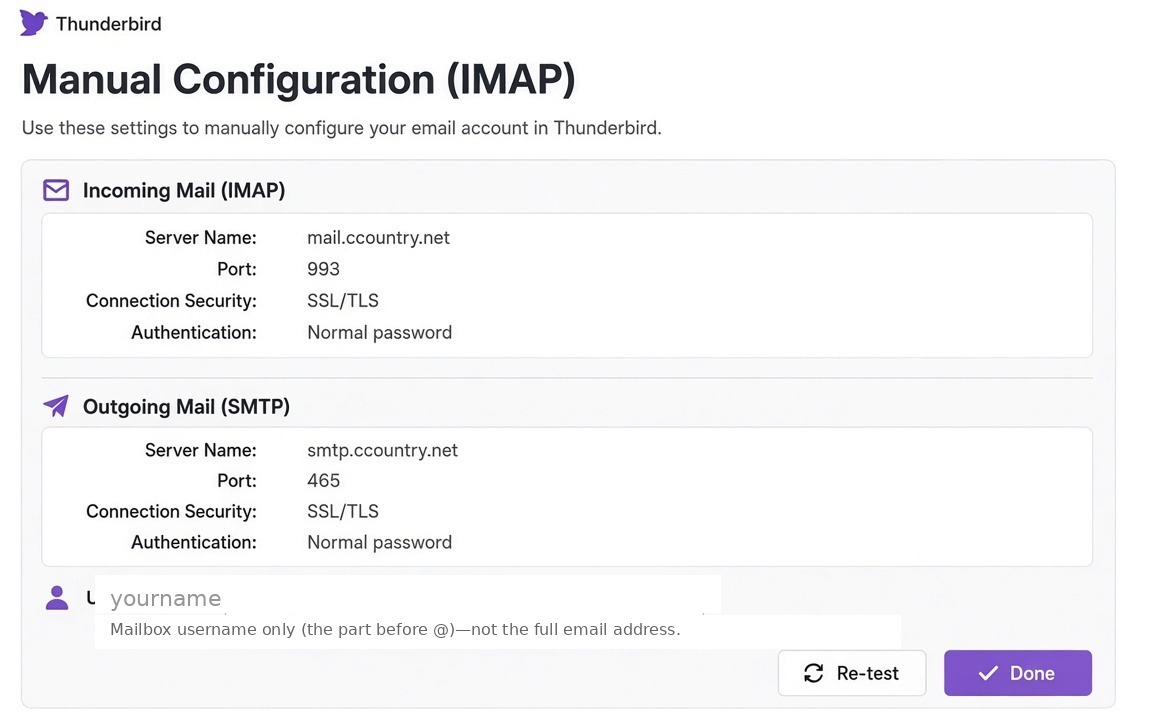
Click Re-test or Done until Thunderbird confirms the account.
If you can receive but cannot send
Open Account Settings → Outgoing Server (SMTP) and confirm smtp.ccountry.net, port 465, SSL/TLS, authentication on, with your username filled in.
After basic mail works, you can use Email Apps with Thunderbird. Need help? Call 541-772-2170 or 1-800-501-8972, or email support@ccountry.net.